11 Github
11.1 Basics
- GitHub Learn hosts official interactive courses, Skills exercises, learning pathways, and credentials.
- A detailed tutorial of Git can be found here on the CS61B website.
- If you are already familiar with Git, you can reference the summary at the end of Section B.
- If you have made a mistake in Git, you can refer to On undoing, fixing, or removing commits in git (Robertson, n.d.) to undo, fix, or remove commits in git.
- For hands-on Git practice, see the UC Davis DataLab Git Sandbox - a collaborative repository for learning Git workflows.
11.2 GitHub Education and Copilot Access
11.2.1 GitHub Education Benefits
Students, faculty, and researchers at UC Davis can access GitHub Education benefits, which include free access to GitHub Pro features and various developer tools.
To sign up for GitHub Education:
- Visit the GitHub Education website
- Click “Get benefits” or “Join GitHub Education”
- Sign in with your GitHub account (or create one if you don’t have one)
- Complete the application form using your UC Davis email address (ending in
ucdavis.edu) - Provide proof of your academic affiliation (e.g., upload a photo of your student ID or university letter)
- Wait for approval (typically takes a few days)
Once approved, you’ll have access to the GitHub Student Developer Pack (for students) or GitHub Teacher Toolbox (for faculty), which includes numerous free tools and services for learning and development.
11.2.2 GitHub Copilot Access for UC Davis Members
GitHub Copilot is an AI-powered coding assistant that can significantly accelerate your work. As a member of the UC Davis GitHub organization, you may be eligible for a free Copilot seat.
To request a Copilot seat:
If you are not yet a member of the UC Davis GitHub organization:
- Ensure you have a GitHub account and have signed up for GitHub Education (see above)
- Go to the UC Davis IT ServiceHub GitHub page
- Click the blue “Get GitHub!” button near the top right
- When you receive the invitation email, make sure to check the “Ask for a GitHub Copilot seat (optional)” checkbox before joining (Figure 11.1)
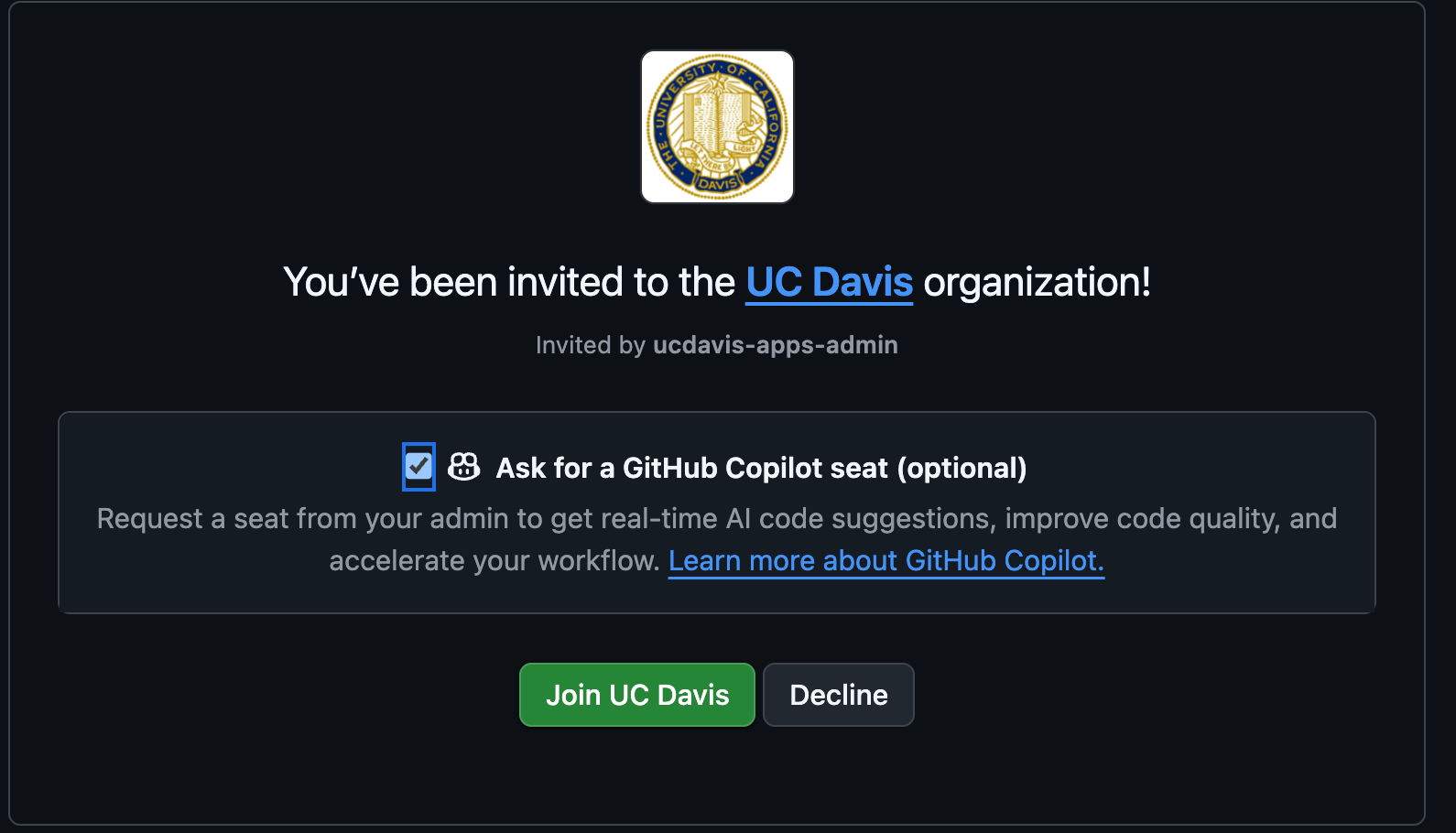
- Click “Join UC Davis” to accept the invitation
- Follow the setup instructions to install and configure Copilot in your development environment
If you are already a member of the UC Davis GitHub organization:
- Go to your GitHub Copilot settings
- Scroll to the “Get Copilot from an organization” section at the bottom
- Find the “ucdavis” entry and click the request button

- Wait for approval from the UC Davis GitHub organization administrators
- Once approved, follow the setup instructions to install and configure Copilot in your development environment
For guidance on using GitHub Copilot effectively, see the wai site’s “Best Practices for Safe and Successful Use” section.
11.3 Graphical Git Clients
While knowing how to use Git on the command line remains essential because it provides the full power, flexibility, and scriptability of Git, graphical Git clients offer visual representations of repository history, interactive branch visualization, and simplified merge conflict resolution.
11.3.1 GitHub Desktop
GitHub Desktop (“GitHub Desktop,” n.d.) is a free, open-source graphical interface developed by GitHub. It simplifies basic Git workflows such as staging changes, creating commits, branching, and opening pull requests. It is an accessible starting point for beginners or for developers who prefer a visual interface for routine Git operations.
11.3.2 GitKraken
GitKraken (“GitKraken,” n.d.) is a cross-platform (macOS, Windows, Linux) Git client and developer experience platform. Key features include:
- An interactive, visual commit graph that simplifies navigating complex branch histories
- Drag-and-drop interactive rebasing and visual branch merging
- An in-app merge conflict editor with side-by-side diffing
- Multi-repository workspaces for tracking and managing multiple repositories together
- Integrations with major Git hosting providers (GitHub, GitLab, Bitbucket, and Azure DevOps) and issue trackers such as Jira
Beyond the standalone GitKraken Desktop client, the GitKraken ecosystem includes the GitLens extension for Visual Studio Code and terminal CLI integrations.
11.3.3 GitKraken Kepler
GitKraken Kepler (“GitKraken Kepler,” n.d.) is GitKraken’s agentic development environment and workspace intelligence platform. It is designed to coordinate and manage agent-driven development workflows, providing a unified interface to:
- Plan implementation work and orchestrate parallel AI coding agents at scale
- Generate context-aware commits, pull request summaries, and code reviews
- Inspect and review diffs and generated changes before shipping code
11.4 GitHub CLI and GitLab CLI
gh is the official GitHub command-line interface. It lets you manage pull requests, issues, repositories, and workflows without leaving the terminal. glab is the GitLab equivalent.
11.4.1 Installing gh
Follow the official installation guide for your platform. The most common routes are:
- macOS:
brew install gh - Linux (Debian/Ubuntu):
sudo apt install ghafter adding the GitHub CLI apt repository - Linux (Fedora/RHEL):
sudo dnf install gh - Windows:
winget install GitHub.cliorscoop install gh
After installing, authenticate:
gh auth loginOn Windows with Git Bash or MSYS2, see the wai site’s “Installing Claude Code on Windows” section for the winpty workaround if the interactive prompt fails.
11.4.2 Installing glab
Follow the official installation guide for your platform. The most common routes are:
- macOS:
brew install glab - Linux: download the latest package from the glab releases page, or use
sudo snap install glab - Windows:
scoop install glab, or download the installer from the glab releases page
After installing, authenticate:
glab auth loginOn Windows with Git Bash or MSYS2, see the wai site’s “Installing Claude Code on Windows” section for the winpty workaround if the interactive prompt fails.
11.5 Git Branching
Branches allow you to keep track of multiple versions of your work simultaneously, and you can easily switch between versions and merge branches together once you’ve finished working on a section and want it to join the rest of your code. Here are some cases when it may be a good idea to branch:
- You may want to make a dramatic change to your existing code (called refactoring) but it will break other parts of your project. But you want to be able to simultaneously work on other parts or you are collaborating with others, and you don’t want to break the code for them.
- You want to start working on a new part of the project, but you aren’t sure yet if your changes will work and make it to the final product.
- You are working with others and don’t want to mix up your current work with theirs, even if you want to bring your work together later in the future.
A detailed tutorial on Git Branching can be found here. You can also find instructions on how to handle merge conflicts when joining branches together.
11.6 Personal Dev Branches
Feature branches work best when each one stays small and scoped, but day-to-day exploratory work does not arrive in tidy, scoped units. Personal dev branches let you have both.
Each developer can keep a long-lived personal branch — named after them, for example dev-ezra — that they push to freely: experiments, half-finished ideas, notes-to-self, and fixes for whatever they bump into along the way. Nobody reviews a dev branch and nothing merges from it directly, so there is no pressure to keep it clean.
When some of that work is ready to contribute back to main:
- Start a new feature branch from the current
main(not from the dev branch). - Cherry-pick the commits you want to contribute from the dev branch onto the feature branch.
- Open a pull request from the feature branch onto
mainas usual.
# one-time setup: create your personal dev branch from current main
git switch -c dev-ezra origin/main
git push -u origin dev-ezra

# daily work: push freely
git switch dev-ezra

# ready to contribute: branch from current main ...
git fetch origin
git switch -c feat-cleaning-helpers origin/main

# ... pull over just the commits that belong in this contribution
git log --oneline dev-ezra           # find the commit hashes
git cherry-pick <hash1> <hash2>

git push -u origin feat-cleaning-helpers
# then open the PR from feat-cleaning-helpers onto main(git switch is the modern, branch-only successor to git checkout; git checkout dev-ezra and git checkout -b feat-cleaning-helpers origin/main, matching the commands used elsewhere in this chapter, do the same thing.)
This way you can flow naturally while working — no stopping to plan a minimal, modular pull request in advance — and still deliver PRs that are minimal and modular, because the scoping happens at cherry-pick time instead.
Two habits make the cherry-picking step painless:
- Commit in small, single-topic units on your dev branch. A commit that mixes two unrelated changes cannot be cherry-picked into two different PRs.
- Sync the dev branch with
mainperiodically (git merge origin/main), so your experiments build on current code and your cherry-picks transplant cleanly.
11.7 Example Workflow
A standard workflow when starting on a new project and contributing code looks like this:
| Command | Description |
|---|---|
SETUP: FIRST TIME ONLY: git clone <url> <directory_name> |
Clone the repo. This copies of all the project files in its current state on Github to your local computer. |
1. git pull origin master |
update the state of your files to match the most current version on GitHub |
2. git checkout -b <new_branch_name> |
create new branch that you’ll be working on and go to it |
| 3. Make some file changes | work on your feature/implementation |
4. git add -p |
add changes to stage for commit, going through changes line by line |
5. git commit -m <commit message> |
commit files with a message |
6. git push -u origin <branch_name> |
push branch to remote and set to track (-u only needed if this is first push) |
| 7. Repeat step 4-5. | work and commit often |
8. git push |
push work to remote branch for others to view |
9. Follow the link given from the git push command to submit a pull request (PR) on GitHub online |
PR merges in work from your branch into master |
| (10.) Your changes and PR get approved, your reviewer deletes your remote branch upon merging | |
11. git fetch --all --prune |
clean up your local git by untracking deleted remote branches |
11.8 Pull Request Roles and Protocol
The lab’s pull request roles, author and reviewer expectations, stacked pull requests (Section 12.1.3), and review-response protocol are consolidated in Chapter 12. This GitHub chapter focuses on Git mechanics and GitHub-specific platform features.
11.9 Commonly Used Git Commands
| Command | Description |
|---|---|
git clone <url> <directory_name> |
clone a repository, only needs to be done the first time |
git pull origin master |
pull from master before making any changes |
git branch |
check what branch you are on |
git branch -a |
check what branch you are on + all remote branches |
git checkout -b <new_branch_name> |
create new branch and go to it (only necessary when you create a new branch) |
git checkout <branch name> |
switch to branch |
git add <file name> |
add file to stage for commit |
git add -p |
adds changes to commit, showing you changes one by one |
git commit -m <commit message> |
commit file with a message |
git push -u origin <branch_name> |
push branch to remote and set to track (-u only works if this is first push) |
git branch --set-upstream-to origin <branch_name> |
set upstream to origin/<branch_name> (use if you forgot -u on first push) |
git push origin <branch_name> |
push work to branch |
git checkout <branch_name> git merge master |
switch to branch and merge changes from master into <branch_name> (two commands) |
git merge <branch_name> master |
switch to branch and merge changes from master into <branch_name> (one command) |
git checkout --track origin/<branch_name> |
pulls a remote branch and creates a local branch to track it (use when trying to pull someone else’s branch onto your local computer) |
git push --delete <remote_name> <branch_name> |
delete remote branch |
git branch -d <branch_name> |
deletes local branch, -D to force |
git fetch --all --prune |
untrack deleted remote branches |
11.10 How often should I commit?
It is good practice to commit every 15 minutes, or every time you make a significant change. It is better to commit more rather than less.
11.11 Repeated Amend Workflow
When working on a complex task, you may want to make frequent incremental commits to protect your progress, but avoid cluttering your Git history with many tiny “work in progress” commits. The Repeated Amend pattern lets you build up a polished commit gradually.
11.11.1 Basic Workflow
Start with a clean working tree in a functional state. Then:
- Make a small change and verify your project still works
- Stage and commit with a temporary message like “WIP” (work in progress)
- Do not push yet
- Make another small change and verify it works
- Stage and amend the previous commit:
git commit --amend --no-edit - Repeat steps 4-5 as needed
- When finished, amend one final time with a proper commit message
- Push your completed work
In RStudio, you can use the “Amend previous commit” checkbox when committing.
11.11.2 Key Points
- Each amend replaces the previous commit rather than creating a new one
- This keeps your history clean while letting you work incrementally
- Only use this pattern before pushing - never amend commits that others may have pulled
- If you need to undo changes, use
git reset --hardto return to your last commit state - Think of commits as climbing protection: use them when in uncertain territory
For more details and troubleshooting scenarios, see the Repeated Amend chapter in Happy Git with R.
11.12 What should be pushed to Github?
Never push .Rout files! If someone else runs an R script and creates an .Rout file at the same time and both of you try to push to github, it is incredibly difficult to reconcile these two logs. If you run logs, keep them on your own system or (preferably) set up a shared directory where all logs are name and date timestamped.
There is a standardized .gitignore for R which you can download and add to your project. This ensures you’re not committing log files or things that would otherwise best be left ignored to GitHub. This is a great discussion of project-oriented workflows, extolling the virtues of a self-contained, portable projects, for your reference.
11.13 GitLab
Our lab primarily uses GitHub, but you may encounter GitLab — most often when collaborating with a group that self-hosts its own GitLab instance.
The two platforms support the same core workflow (clone, branch, push, review, merge), with a few differences worth knowing:
- Terminology. A GitHub pull request is a GitLab merge request (MR); the concept is identical.
- Hosting. GitLab is open-core and designed for self-hosting, so organizations often run their own instance behind their firewall; GitHub repositories almost always live on github.com.
- Continuous integration. GitLab ships a built-in CI/CD system configured by a single
.gitlab-ci.ymlfile at the repository root, where GitHub uses GitHub Actions workflows under.github/workflows/(see Chapter 13). - Command-line tool.
glabis the GitLab counterpart togh; installation and authentication are covered in Section 11.4.
Two R packages help when working with GitLab from R (the second works across both forges):
{gitlabr}provides R access to the GitLab API, with convenience wrappers for common tasks (repository file access, issue assignment and status, commenting).{pr.helpers}, our lab’s own (experimental) package, provides helpers for common pull/merge request workflows from a local Git repository — creating and switching branches, fetching requests by number, generating request URLs, and syncing with the default branch — and works across both GitHub and GitLab remotes.
11.14 Customizing How Files Appear on GitHub
GitHub uses a tool called Linguist to detect languages in your repository and generate language statistics. You can customize how certain files are treated by GitHub using a .gitattributes file in the root of your repository. This is particularly useful for marking generated files, documentation, or vendored code that shouldn’t count toward your repository’s language statistics.
11.14.1 The linguist-generated Attribute
One of the most useful attributes is linguist-generated, which marks files as generated code. Files marked this way are:
- Excluded from language statistics - they won’t affect your repository’s language breakdown
- Hidden by default in diffs - making pull request reviews cleaner and more focused on actual code changes
Common use cases for linguist-generated include:
- Compiled or minified files (e.g.,
*.min.js,*.min.css) - Auto-generated documentation files
- Files generated by build tools or code generators
- Lock files that are updated automatically
For more details, see the Generated code documentation.
11.14.2 Using .gitattributes
Create a .gitattributes file in the root of your repository and add patterns for files you want to mark as generated:
# Mark minified JavaScript as generated
*.min.js linguist-generated

# Mark search index as generated
search/index.json linguist-generated

# Mark compiled CSS as generated
dist/styles.css linguist-generated
To unmark a file that would normally be considered generated:
# Don't treat bootstrap as generated
bootstrap.min.css -linguist-generated
The .gitattributes file uses the same pattern matching rules as .gitignore. For more details, see the pattern format documentation and the Using gitattributes guide.
11.14.3 Other Useful Linguist Attributes
Beyond linguist-generated, you can use several other attributes:
linguist-vendored- Marks vendored code (libraries you didn’t write) to exclude from stats (documentation)linguist-documentation- Marks documentation files to exclude from stats (documentation)linguist-detectable- Forces a file type to be included in language stats (useful for data or prose files) (documentation)linguist-language=<name>- Overrides the detected language for syntax highlighting (documentation)
Example .gitattributes file:
# Exclude vendored dependencies
vendor/* linguist-vendored

# Exclude generated files
*.generated.ts linguist-generated
dist/* linguist-generated

# Mark documentation
docs/* linguist-documentation

# Force R Markdown files to be detected
*.Rmd linguist-detectable
For complete documentation, see Customizing how changed files appear on GitHub and the Linguist overrides documentation.
11.15 Exporting Issue and Pull Request Conversations
Issue threads and pull request reviews hold a lot of the reasoning behind a project: why an approach was rejected, what a reviewer worried about, which alternative was tried first. That record lives on GitHub’s servers, not in your Git history, so git clone does not capture any of it.
Reasons to pull it out:
- Archiving a project before a repository is transferred, made private, or deleted.
- Offline or full-text search across years of discussion, which is faster and more thorough than GitHub’s search box.
- Supplementary material documenting how an analysis evolved, for a manuscript or a reproducibility appendix.
- Feeding context to an AI coding assistant that cannot browse the web but can read files in the working directory.
11.15.1 A pull request holds three separate conversations
This is the detail that most home-grown export scripts miss. What the GitHub web interface presents as one continuous thread is actually three different resources in the API:
| Stream | What it is | Where it lives |
|---|---|---|
| Issue comments | Top-level comments in the “Conversation” tab | /issues/{n}/comments |
| Reviews | The summary body attached to an Approve, Request changes, or Comment review | /pulls/{n}/reviews |
| Review comments | Inline comments anchored to a line of the diff | /pulls/{n}/comments |
Fetch only the first and you will silently drop every line-level review comment and every reviewer’s summary — usually the most substantive part of the discussion.
A fourth resource, the timeline (/issues/{n}/timeline), carries the non-prose events: labels applied, commits referenced, issues linked and closed, review requests. Export it too if you care about what happened and not only what was said.
Note also that GitHub models pull requests as a kind of issue. The /issues endpoint returns both, with pull requests distinguished by a pull_request key, so filter deliberately rather than assuming you got only issues.
11.15.2 Exporting with gh
The GitHub CLI (Section 11.4) is the shortest route for a handful of repositories. Its --json flag will assemble the separate streams for you.
Issues, with their comment threads inline:
gh issue list --repo UCD-SERG/serocalculator --state all --limit 1000 \
  --json number,title,state,author,createdAt,closedAt,labels,body,comments \
  > issues.json
Pull requests need all three streams named explicitly:
gh pr list --repo UCD-SERG/serocalculator --state all --limit 1000 \
  --json number --jq '.[].number' |
while read -r n; do
  gh pr view "$n" --repo UCD-SERG/serocalculator \
    --json number,title,state,author,createdAt,mergedAt,body,comments,reviews,reviewThreads \
    > "pr-${n}.json"
done
reviewThreads is the one to watch: it nests the inline comments under the thread they belong to and reports whether the thread was resolved, which a flat list of review comments cannot tell you.
Note that --limit defaults to 30. Set it above your repository’s issue count, or you will get a partial export with no warning.
11.15.3 Exporting with the REST API
When you need a field gh’s --json flag does not expose, call the API directly. gh api handles authentication and pagination for you:
gh api --paginate /repos/OWNER/REPO/issues/123/comments
gh api --paginate /repos/OWNER/REPO/pulls/123/comments
gh api --paginate /repos/OWNER/REPO/pulls/123/reviews
gh api --paginate /repos/OWNER/REPO/issues/123/timeline
Without --paginate you get the first 30 records and nothing to indicate more exist.
The same endpoints work from R via the gh package, which is convenient if the export feeds directly into an analysis:
comments <- gh::gh(
  "/repos/{owner}/{repo}/issues/{number}/comments",
  owner = "UCD-SERG",
  repo = "serocalculator",
  number = 123,
  .limit = Inf
)
.limit = Inf is that package’s equivalent of --paginate.
11.15.4 Exporting with GraphQL
REST costs three or four requests per pull request. Across several hundred pull requests that is thousands of requests against a limit of 5000 per hour. GitHub’s GraphQL API can return the comments, reviews, and review threads for a pull request in a single request, which is worth the extra complexity once a repository is large enough that the REST approach runs into the rate limit. Use gh api graphql to issue the query.
11.15.5 Whole-repository archives
GitHub’s migration API builds a downloadable archive of your data as JSON. It is the most complete of the routes here.
The user migrations reference lists what the archive can hold (“REST API Endpoints for User Migrations,” n.d.). Every stream named above is in it — issues, issue_comments, pull_requests, pull_request_reviews, and review_comments — along with issue_events, commit_comments, milestones, releases, repositories, and users.
Start a migration with POST /user/migrations for repositories you own, or POST /orgs/{org}/migrations for an organization’s repositories if you are an organization owner (“REST API Endpoints for Organization Migrations,” n.d.). Both are asynchronous: you poll the migration’s status until it reports exported, then download the archive, which stays available for seven days.
Settings > Account > Export account data is the web-interface route to this same export rather than a separate feature. GitHub’s documentation states that you can export your personal account’s data “through your account settings on GitHub or with the User Migration API”, and refers readers to the migrations API reference for what that data covers (“Requesting an Archive of Your Personal Account’s Data,” n.d.). Clicking through delivers the .tar.gz by emailed download link. That makes this the one route needing no code at all: a lab member who wants the whole record can click through Settings and skip everything above.
This route is the right one for archiving a repository before it is deleted or transferred. The per-repository scripts above are better for ongoing exports or for a subset of the discussion.
11.15.6 Practical cautions
- Whether you get attachment files depends on the route. Through
ghor the REST API you get comment text, in which a pasted image or file is a link to GitHub’s asset servers — the URL, not the file. Download those separately if they matter, and note that assets on a private repository require authentication to fetch. The migration archive is the exception: it carries anattachmentsdirectory of the files themselves, unless you ask for it to be left out (“REST API Endpoints for User Migrations,” n.d.). - The authenticated rate limit is 5000 requests per hour. A few hundred pull requests exported through REST will get close. Check your remaining budget with
gh api /rate_limit. - Reactions and thread resolution need to be requested. Neither comes along by default in a plain comment listing.
- Deleted and edited content is gone. An export captures the current state, not the edit history of a comment.
Whatever route you take, commit the export to a repository or deposit it somewhere durable. An archive that lives only on the laptop of whoever ran the script has not solved the problem it was made to solve.
11.16 Removing Sensitive Data from a Repository
Accidentally committing credentials, API tokens, private keys, or sensitive patient data to a Git repository is a security incident that requires prompt remediation.
Simply deleting the file in a subsequent commit does not remove it from Git history, as the data remains accessible in earlier commit snapshots.
11.16.1 Immediate steps
- Rotate exposed secrets: Immediately revoke and rotate any leaked passwords, API keys, or tokens. Assume that any credential pushed to a remote repository has been compromised.
- Purge the file from history: Use tools like
git-filter-repo(officially recommended by Git and GitHub) or BFG Repo-Cleaner to scrub the sensitive file from all commits, branches, and tags in your local repository. - Force-push rewritten branches: Coordinate with your team before force-pushing rewritten branches with lease (
--force-with-lease --force-if-includes) to GitHub. - Notify all collaborators: All collaborators must discard old clones or rebase (never merge) their local branches onto the rewritten history; merging an old branch will re-introduce the sensitive data into the repository.
- Contact GitHub Support to clear cached views (optional): Cached commits and pull request views on GitHub may retain sensitive objects until they are garbage-collected; contact GitHub Support if you need cached views purged immediately.
For detailed step-by-step instructions, see GitHub’s guide on Removing sensitive data from a repository.